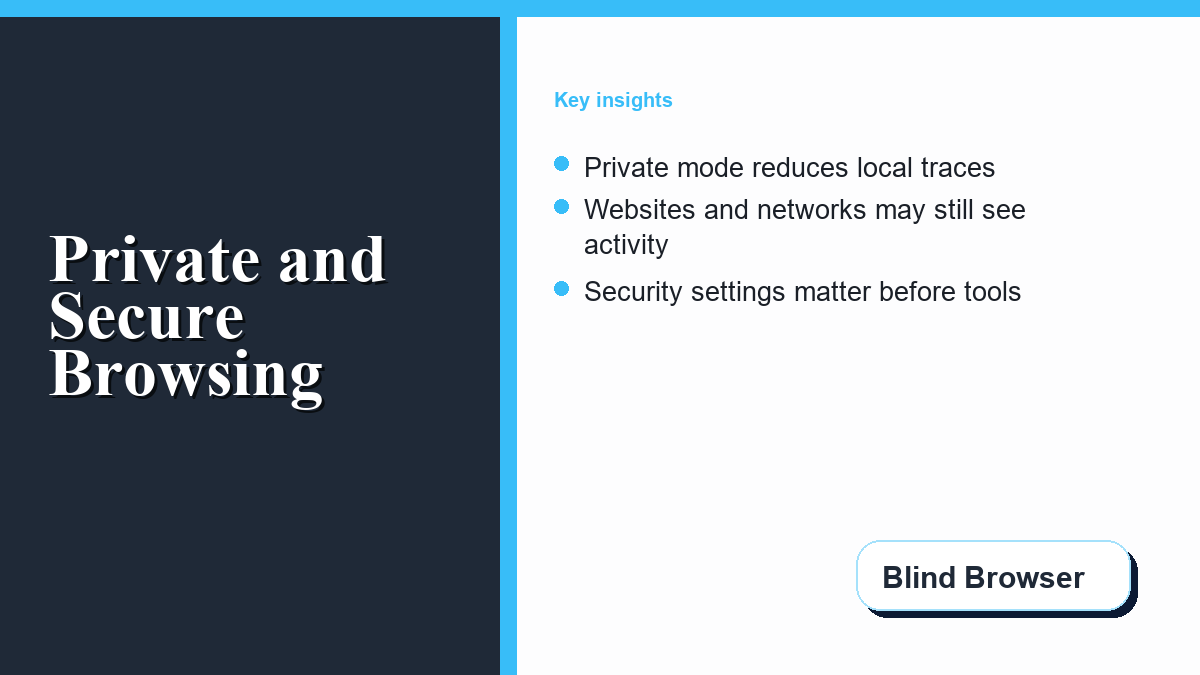
A private or incognito window is useful, but it is easy to misunderstand. It can reduce what your browser saves on the device after you close the session. It does not make your traffic invisible to websites, your network, your internet provider, or an account you sign into.
That distinction matters because browser privacy works in layers. Local privacy controls what the next person using the same device can see. Network visibility covers what websites, employers, schools, Wi-Fi owners, and internet providers may observe as your traffic moves. Browser security covers settings and habits that reduce tracking, phishing, and unsafe connections.
A better way to think about the choice is to ask three questions before browsing: who can use this device after me, who controls the network I am on, and which account will identify me if I sign in? Private browsing helps most with the first question. Secure browser settings help with the second and third questions, but they do not erase the need for careful behavior.
What Private Browsing Hides on the Device
Private browsing is mainly a local cleanup feature. Google Chrome Help explains that Incognito limits what Chrome saves after the session. Mozilla Support describes a similar boundary for Firefox Private Browsing: history, cookies, and site data from that session are not saved after the private windows close.
That can help on a shared computer. The next person should not see the same session in the normal history list, and temporary cookies from the private session should be removed. It is useful for checking an account on a borrowed device, comparing prices without carrying over recent cookies, or researching something you do not want left in the visible browser history.
The feature is not weak because it is limited. It is simply designed for a narrow job: reducing local traces. Problems start when people treat a private window like an anonymity tool.
That is why private mode is useful for ordinary, low-risk situations but incomplete for sensitive ones. It can be a smart habit on shared computers, but it should be paired with account sign-out, careful downloads, browser updates, and a realistic understanding of who still controls the connection.
What Private Mode Does Not Hide
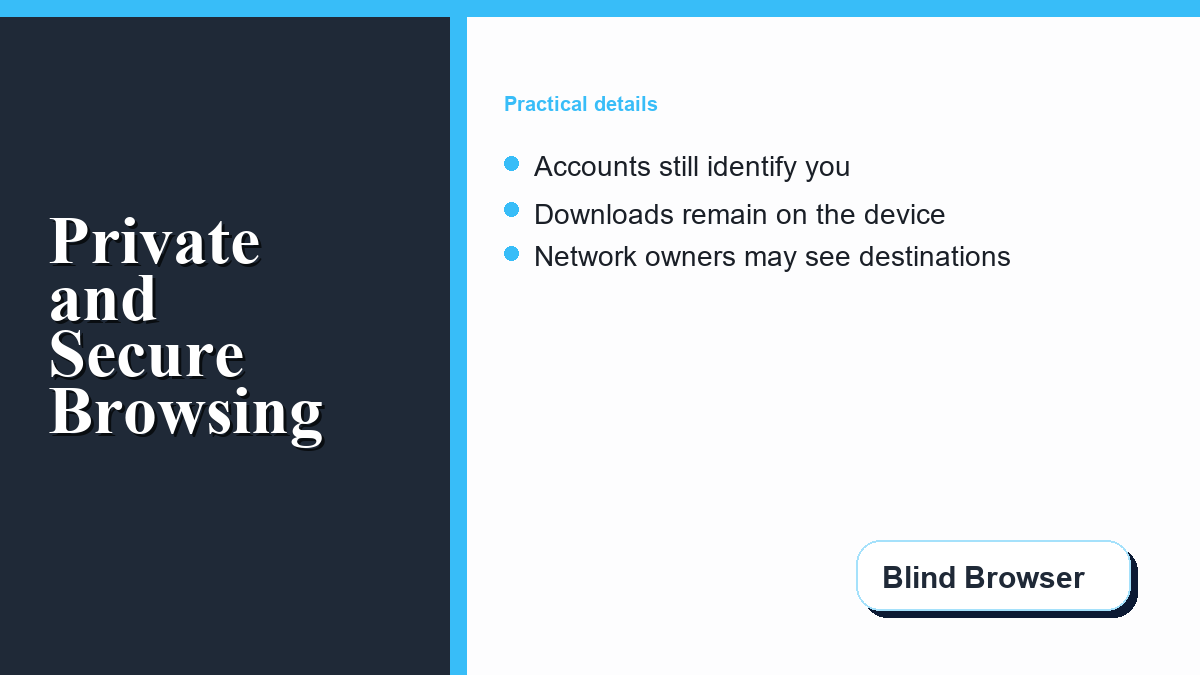
A website can still receive your IP address, read information your browser exposes, and identify you if you log in. If you open a private window and sign into email, banking, a social account, or a work dashboard, that service can connect the activity to the account.
Your network may still see destination information. On a school, employer, hotel, airport, or home Wi-Fi network, the network owner may be able to log requested domains or connection metadata. Your internet provider may also process routing and DNS data. Private browsing does not reroute your connection or erase those external records.
Private mode also does not remove files you intentionally download, bookmarks you create, or information captured by malware already running on the device. For a deeper look at workplace and school visibility, see Blind Browser’s guide to anonymous browsing and employer tracking.
This also applies to search, shopping, and social platforms. If you search while signed into a major account, the provider may connect that activity to your profile. If you browse a store while logged in, the store may remember the session through its own account system. The private window mainly changes what the browser saves locally after the session closes.
Secure Browsing Starts With Browser Settings
Because private browsing only handles part of the problem, the next layer is secure browsing. CISA’s browser settings guidance points users toward basics such as keeping browsers updated, closing and restarting them so patches apply, limiting third-party cookies, reviewing ad personalization, managing site permissions, and being careful with extensions.
Extensions deserve extra caution. A good blocker or privacy extension can reduce tracking, but an unnecessary or poorly vetted extension can read page data or add risk. Blind Browser’s overview of privacy tools for safe web browsing is a better next step than installing whatever a search result recommends.
Connection security matters too. CISA’s secure website guidance recommends using HTTPS, enabling HTTPS-only settings where available, checking URLs for misspellings, and understanding certificate warnings. HTTPS helps protect the contents exchanged with a site, such as passwords or forms. It does not hide every destination signal from every observer on the path.
Small browser choices add up. A fully updated browser with limited site permissions, fewer extensions, HTTPS-only mode, and third-party cookie blocking is usually safer than an outdated browser running in private mode. Private mode can be part of the routine, but it should not be the whole routine.

Where Tor Browser Fits
Private browsing and Tor Browser solve different problems. A private window cleans up local session data. The Tor Project explains that Tor Browser routes traffic through the Tor network and is modified to resist tracking and fingerprinting.
That can help when a person needs stronger network privacy. It is still not a single switch for full anonymity. If you log into a personal account, upload identifying files, reuse the same writing patterns, or route a regular browser through Tor incorrectly, you can still reveal yourself. For readers comparing tool categories, Blind Browser’s guide to privacy-focused browser options can help separate everyday browser choices from higher-privacy use cases.
For everyday browsing, Tor may also create friction. Pages can load more slowly, some sites challenge or block Tor traffic, and logging into personal accounts reduces the privacy benefit. Use it when the need matches the tradeoff, not because a private window feels too ordinary.
Privacy and Security Tools Compared
| Tool or setting | Main job | Helps with | Does not solve |
|---|---|---|---|
| Private window | Local session cleanup | History, temporary cookies, and form data on the device | Website tracking, account identity, ISP or network logs |
| Privacy-focused browser | Tracking reduction | Some cookies, trackers, and fingerprinting attempts | Signed-in accounts or all network visibility |
| HTTPS-only setting | Encrypted site connections | Protecting exchanged page data from interception | Hiding every destination signal |
| VPN | Traffic tunnel and IP masking | Local-network visibility and website-facing IP address | Trust in the VPN provider or account-based tracking |
| Tor Browser | Network privacy and anti-fingerprinting | Separating your real IP from visited sites when used carefully | Identity mistakes, account logins, or unsafe files |
A Practical Secure Browsing Checklist
- Update and restart the browser. Security patches only help after they are installed and active.
- Block third-party cookies where possible. This reduces cross-site tracking by advertising and analytics networks.
- Review site permissions. Remove location, camera, microphone, and notification access from sites that do not need it.
- Audit extensions. Keep only extensions you trust and still use.
- Use HTTPS-only settings. Treat warnings and misspelled domains as a reason to pause.
- Separate accounts from privacy sessions. Logging in tells the site who you are, even in a private window.
If the goal is to keep activity off a shared device, a private window plus sign-out may be enough. If the goal is to reduce advertiser tracking, focus on cookies, permissions, extensions, and browser choice. If the goal is to hide destination data from a local network, a private window is the wrong tool; the decision moves toward VPNs, Tor Browser, or a different network depending on the risk.
Frequently Asked Questions
What happens when you browse in private?
The browser creates a temporary session and removes local records such as history, cookies, and form data from that session after private windows close. It helps on shared devices, but it does not hide activity from websites, networks, or internet providers.
Is there a completely anonymous browser?
No browser makes every action anonymous by itself. Tor Browser can provide stronger network privacy when used carefully, but account logins, unsafe downloads, personal behavior, and device issues can still identify a person.
Can employers, schools, or internet providers see incognito browsing?
They may still see domain or connection data because private mode does not reroute traffic. A private window mainly affects what the browser saves locally on the device.
What is secure browsing?
Secure browsing is the combination of updated software, safer browser settings, HTTPS use, careful extension choices, permission control, and habits that reduce tracking and unsafe connections.
Should I use Tor Browser for everyday browsing?
Most everyday users are better served by updated browsers, stronger settings, password hygiene, and careful site checks. Tor Browser is more useful when the specific need is stronger network privacy and the user understands its tradeoffs.