Local tools are useful because location matters. A weather alert for one side of a bay may not match the wind, tide, or rain window at the dock you actually plan to use. That is why people search for phrases like weather near me, tide chart near me, or fishing forecast near me before leaving the house. A location-aware fishing forecast can be helpful when it lets you plan around saved waters and manually chosen spots instead of making precise live GPS access the only path.
The privacy tradeoff is that near-me convenience often turns into a permission prompt. A browser may ask whether a site can use your location. A phone app may ask for precise GPS access. A website may still estimate your area from your IP address even when you say no. That does not mean local tools are off limits. It means you should know which permission you are granting, why it is needed, and whether a safer manual option would work just as well.
This guide is for ordinary users who want practical local information without handing out more location access than necessary. The examples focus on weather, tide, marine, and fishing tools, but the same habits apply to maps, travel sites, delivery apps, and event calendars.
Know the difference between a local search and location permission
A local search is not necessarily the same thing as device location access. If you type a town, ZIP code, marina name, beach name, or tide station into a search box, you are choosing the place yourself. The site can return information for that place without asking your browser or phone for a live GPS position.
Location permission is different. When a site asks to use your location, your browser or operating system becomes part of the request. Google Chrome Help explains that sites may ask for your location and that you can allow, block, or manage location permissions in browser settings. Apple also documents ways to control Location Services settings globally, per app, and for websites in Safari. Those controls exist because location is sensitive data.
For many weather and outdoor planning tasks, you may only need a general region, a saved spot, or a manually entered place. The more specific the location signal, the more careful you should be about who receives it.
Use manual places first
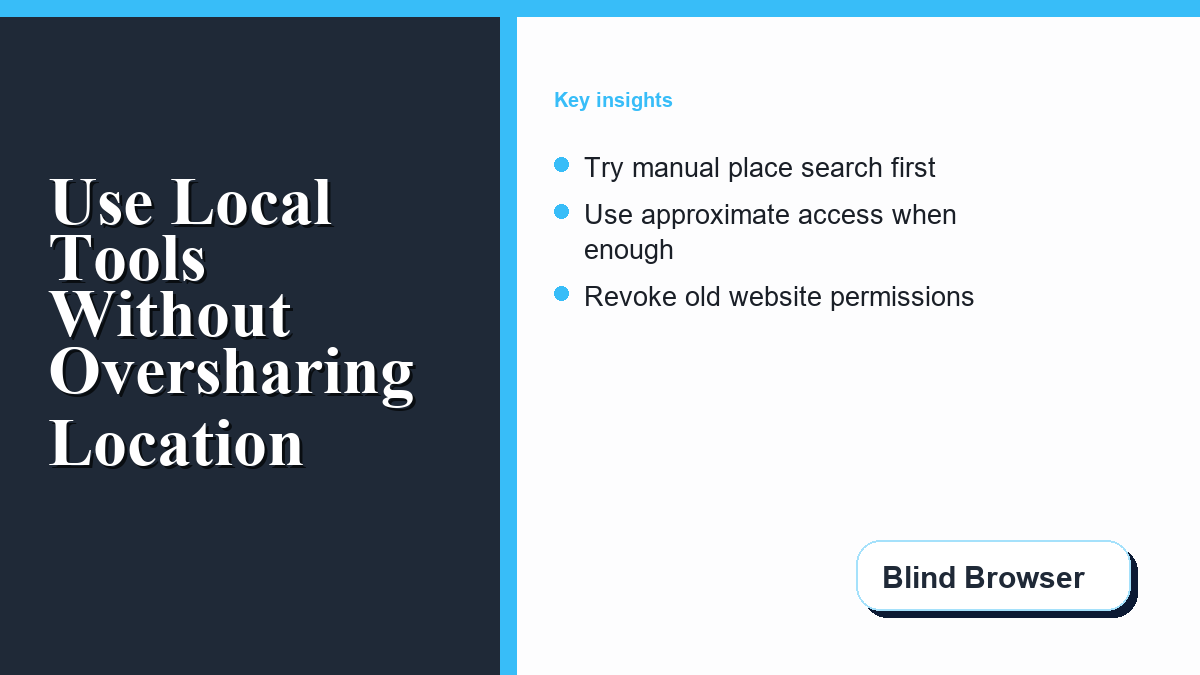
The simplest privacy habit is to search by place before tapping use my current location. For fishing and coastal planning, that might mean entering a harbor, bridge, inlet, pier, public beach, tide station, lake, river gauge, or nearby town. Manual search gives you useful local context while avoiding a fresh device-location permission grant.
Manual entry also reduces accidental over-sharing. If you are researching a destination, the destination is the relevant point. Enter it directly.
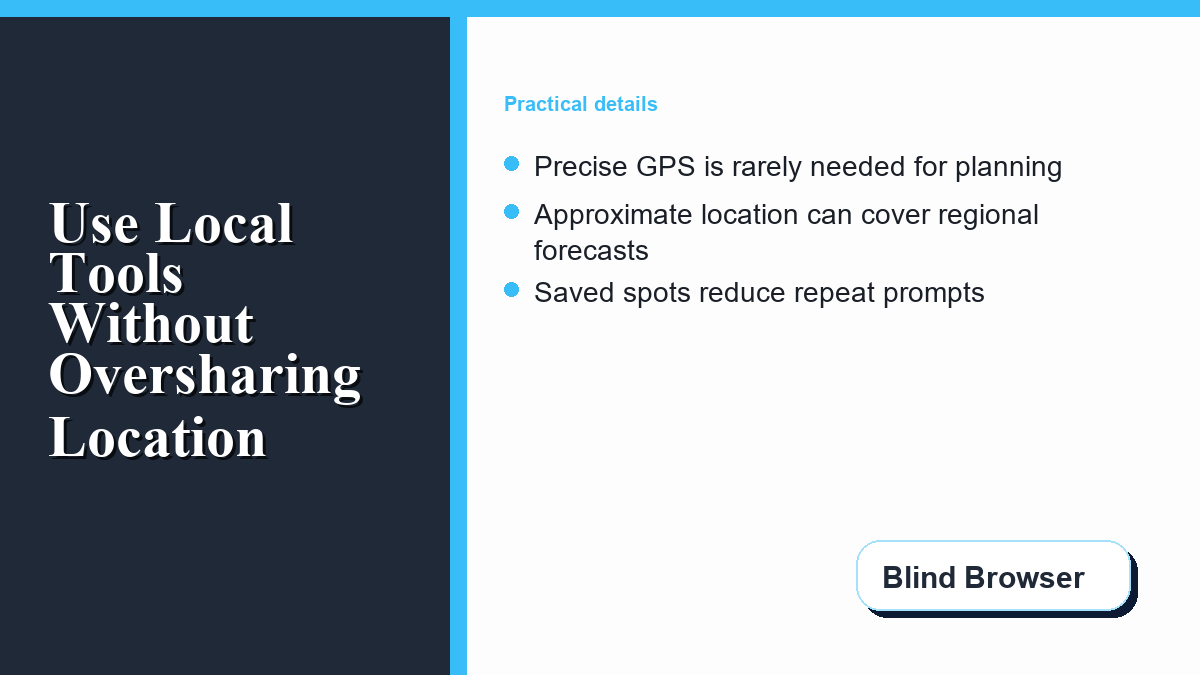
For anglers, saved-location workflows can be especially useful. Saved spots and manual searches are often enough for planning before you leave. They also reduce repeated permission prompts because you are choosing the water you care about directly, rather than asking every new site to locate your device again.
Prefer approximate access when it is enough
Modern mobile systems often separate precise and approximate location. Precise access can identify a much tighter position. Approximate access gives a broader area. Apple explains that users can manage Location Services for specific apps, including whether an app can use precise location. If a general forecast, regional wind read, or nearby-search result is enough, approximate access is usually the better default.
Use precise location only when the task truly needs it. Turn-by-turn navigation, emergency help, and finding yourself on a map can justify precise access. Reading tomorrow’s tide window for a planned fishing spot usually does not.
If an app refuses to work without precise access, treat that as a signal to slow down. Some apps genuinely need it for the feature you chose. Others ask because it makes the product easier to personalize or measure. The right question is simple: could this feature work if I typed the place manually? If yes, try manual search first.
| Planning task | Lower-sharing option | When precise access may make sense |
|---|---|---|
| Checking tomorrow’s local forecast | Enter a city, ZIP code, or saved destination | Rarely needed for basic planning |
| Reviewing tide or marine conditions | Search by station, inlet, harbor, or beach | Useful only when matching your exact current position to the nearest station |
| Finding yourself on a map | Use one-time access if available | Often reasonable during active navigation |
| Saving a future fishing spot | Manually choose the spot or station | Useful if you are standing at the exact spot and intentionally saving it |
Audit browser permissions after using a new site
One permission prompt can become a long-lived setting. Chrome lets you manage which sites can use location in browser settings. Safari also has website settings for location access. If you granted a site permission for a single task, check later whether that permission stayed on.
A good monthly audit is short:
- Open your browser’s site or privacy settings.
- Find the location permissions list.
- Remove sites you no longer recognize or use.
- Set unfamiliar sites back to ask or block.
- Keep location access only for tools you trust and still need.
Do the same on your phone. Review app-level Location Services and remove background access where while-using or manual search would work. If precise location is enabled for an app that only needs a general area, consider turning precise location off.
Do not confuse privacy with safety
Limiting location access should not make your outing less safe. Weather, tide, river, marine, and alert information can affect real decisions. The privacy-first move is not to ignore local conditions. It is to get the information through the least invasive method that still fits the decision.
Before a coastal or boating trip, check official weather and marine sources, local advisories, and current conditions. If you are using a planning app, treat it as a convenience layer, not the only authority.
Privacy settings are part of the preparation. Safety judgment is still yours. If you need a refresher on broader browser habits, Blind Browser’s guide to internet safety tips for adults is a good place to reinforce the basics.
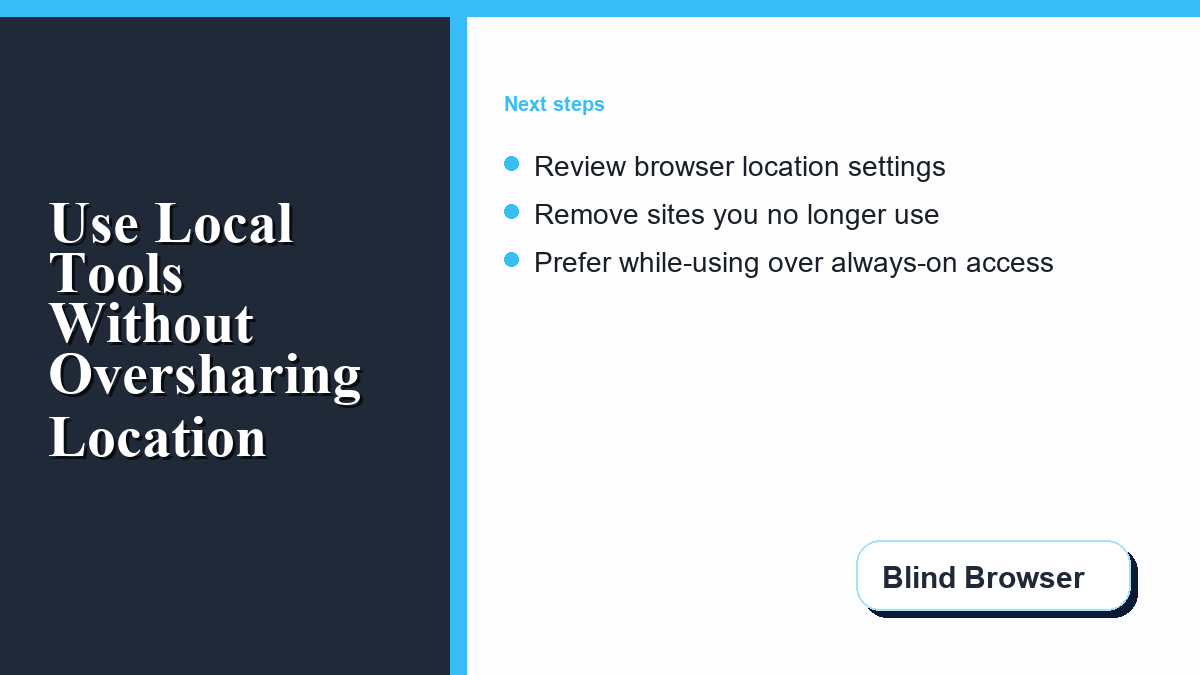
Use one-time or while-using access when you do grant permission
Sometimes location permission is reasonable. If you are already at a public ramp and want to find the closest tide station, a temporary location lookup can save time. If you need a map to orient yourself, location can be useful.
When you grant access, choose the narrowest option available. Use one-time access if your device offers it. Use while-using instead of background access when background tracking is unnecessary.
After the task is finished, close the loop. Check the permission list and remove access you no longer need. This habit matters because location permissions are easy to grant in the moment and easy to forget later. It also pairs well with the general habits in Blind Browser’s guide to effective strategies for ensuring data privacy while browsing.
A practical checklist before your next near-me lookup
Use this checklist when a weather, tide, marine, or fishing tool asks for location:
- Can I type the place instead? Use a town, harbor, station, beach, or saved spot when manual entry is enough.
- Does this need precise location? If approximate access works, avoid precise GPS.
- Is this a trusted tool? Be more cautious with unfamiliar sites, thin apps, or pages that do not explain why location is needed.
- Can I revoke access later? If you grant access, know where to remove it in browser or app settings.
- Is safety information still covered? Use official weather, marine, and local advisory sources for safety-critical decisions.
The goal is not to make local tools harder to use. The goal is to choose the right level of sharing. For many outdoor planning tasks, a saved spot or manually entered destination gives you the context you need without turning every forecast check into a precise-location event.
FAQ
Should I block location access for every weather or fishing site?
No. Some location requests are useful. The safer default is to try manual place search first, then grant narrow access only when the feature truly needs it.
Is approximate location good enough for forecasts?
Often, yes. Regional weather and planning tools usually do not need exact GPS coordinates. Safety-critical marine or navigation decisions may need more precise context from trusted sources.
How do I revoke a website’s location access?
Use your browser’s site settings or privacy settings. Chrome and Safari both provide controls for reviewing and changing location access for websites.
Is a saved fishing spot more private than live GPS?
It can be, depending on the app and settings. A saved spot or manual destination can reduce the need for repeated live GPS lookups during planning.
What should I do before granting precise location?
Ask whether manual entry, approximate location, or one-time access would solve the same problem. If yes, use the narrower option.